Showing posts with label Visual Studio. Show all posts

Tuesday, March 23, 2010

ScottGu’s lots of list of links…

March 21st Links: ASP.NET, ASP.NET MVC, AJAX, Visual Studio, Silverlight

I am not a big fan of pointing to other blog entries with long list of more links.  However I will make an occasional exception.  Scott Guthrie’s has posted 15 or more really interesting links to help us get up to speed on the latest development technologies including Silverlight, ASP.NET and ASP.NET MVC.

Enjoy!

Saturday, March 13, 2010

Force Visual Studio 2010 RC to use Silverlight 4

If you have installed the Silverlight 4 tools with the RC of Visual Studio 2010 you may need to make a registry update to force Visual Studio to use Silverlight 4 instead of Silverlight 3.

In the Registry editor (regedit.exe) change the following values

  1. Open the hive HKEY_CURRENT_USER\Software\Microsoft\VisualStuio\10.0_Config\DesignerPlatforms\Silverlight
  2. Change the value SilverlightHost from v3.0 to v4.0
  3. Navigate to the next hive
    HKEY_LOCAL_MACHINE\SOFTWARE\Wow6432Node\Microsoft\VisualStudio\10.0\DesignPlatforms\Silverlight
  4. Change the value here for SilverlightHost from v3.0. to 4.0
  5. Navigate to the Hive
    HKEY_USERS\.DEFAULT\Software\Microsoft\VisualStudio\10.0_Config\DesignPlatforms
  6. Change the value here for SilverlightHost from v3.0. to 4.0

image

If you need help getting the Silverlight 4 tools installed with the RC see my earlier blog post here.

Visual Studio 2010 RC1 and Silverlight 4 Tools

The current Silverlight Tools are currently targeting Visual Studio 2010 Beta 2. If you attempt to run the Silverlight4_Tools.exe with the release candidate for Visual Studio 2010 installed you will encounter the following error:
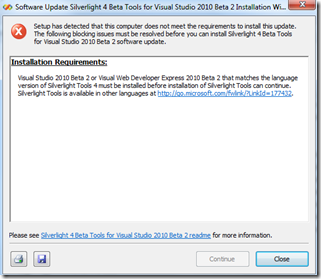
image

Visual Studio 2010 RC1 works just fine with the Silverlight 4 tools. To install them and get around the error, run the Silverlight4_Tools.exe when the error comes up in the screen shot above.

Leave this screen up and find the temporary install folder on the root of your windows drive (for most of you it will be in the root of the c:\ drive).  The temporary install folder will have the current date and time and look something like a long guid with no braces ‘{‘ or dashes ‘-‘.

Examples include:

C:\7729222c5765f31a2b3cbe75fd15d0f6

or

C:\be8ce60a1b13d3b959edb1a4dfdd50

Again you can also tell by just looking at the newest folder created on the root drive.

Create a new folder (anywhere on the computer) and give a name like SL4Install.

Copy contents of the temp folder to the SL4Install folder (remember don’t close the error dialogue yet).

Once you have folder content copied into the SL4Install folder click the close button on error dialogue

In the SL4Install open the ParameterInfo.xml file in a text editor like notepad.

image

Modify the following lines

Add a start comment to line 13 and the corresponding end comment to line 41. Effectively commenting out the entire <BlockIf>…</BlockIf> node.

<!-- <BlockIf DisplayText="Visual Studio 2010 Beta 2 or Visual Web Developer Express 2010 Beta 2 …

</BlockIf> -->

Save the file and close your text editor.

In the SL4Install folder run the SPInstaller.exe file (make sure Visual Studio, Blend and any other installs are closed or completed).

That’s it you should be able to use the Silverlight 4 Tools with Visual Studio 2010 RC.

Happy Programming!

Thursday, February 18, 2010

Visual Studio 2008 support for SQL Server 2008 – GDR R2

Go grab it here.

What’s changed/new?

  • The database edition of SQL Server no longer requires SQL Server Express being installed on the local machine for the design database (and the crowd goes wild)!!
  • This release produces the schema separately in the build and deploy to allow for setup to be run independently (very nice).
  • The new dependency viewer allows you to find relationships with objects in your database event at the column level.

Ok, for some of you this is old news (the GDR R2 release has been out since April 2009).

Important make sure you uninstall any database edition power tools at the command line type:

msiexec /X {EA016DAB-E08A-46FB-BBF0-ED6EB8FD4671}

image

Make sure you have elevated privileges.  Also make sure you have Visual Studio Service Pack 1 handy.  You will need to apply that before installing this drop.

BTW – GDR stands for General Distribution Release

Friday, February 12, 2010

Visual Studio ve-####.tmp files

While in Visual Studio you may start seeing temp files start to appear in your solution. You delete them and all of a sudden they reappear again.  In many cases this a problem with your anti-virus solution.  Go into your AV solution and exclude the Visual Studio types from being scanned, especially the *.vb and *.cs extensions.

In my case this happened with Microsoft Security Essentials. I did not have this problem when running Microsoft OneCare or earlier versions of Free AVG. It also seems like this problem surfaces a lot with Trend Micro solutions as well.